Home

Showing posts with label Windows 7. Show all posts

Sunday, 9 December 2012

How to Create Password protected Excel worksheet or workbook.

By Password protecting Excel worksheet can prevent a user from accidentally or deliberately changing, moving, or deleting important data from a worksheet or workbook, you can protect certain worksheet or workbook elements, with a password. You can remove the protection from a worksheet as needed.

Steps to do :-
To do this in Microsoft Excel 2007,
1.Open your Excel worksheet.
2.Click on the Review tab and then click on Protect Sheet.


A pop-up window will appear, select your options and type the password. Any thing you can type as password,but don’t forget the given password.


After typing the password it will again ask for your password.


4.Now excel sheet will open all time as read only mode. Without knowing password no-one can update the sheet.whenever you will try to update the sheet, following alter box will appear.


Then how will you update the sheet,
Simply by Removing protection from a worksheet.
1.On the Review tab, in the Changes group, click Unprotect Sheet.


2. If prompted, type the password to unprotect the worksheet.

Next, Password Protect the Entire Workbook.
To do this, click on File, then Save As.
The Save-as window will come up,type in your file name,then select the Tools drop down menu. From that drop down menu,select General Options.


After clicking General Options, one pop-up window will appear,it will ask for two password
1.Password to open and 2.Password to modify


It will enable you to password protect the entire workbook and prevent anyone else from opening it and viewing its contents.


But remember When you protect worksheet or workbook elements by using a password, it is very important that you remember that password. Without it, you cannot unprotect the workbook or worksheet.

Friday, 7 December 2012

Play YouTube Videos Directly in VLC Media Player.

VLC media player supports playing Youtube video just by hitting URL as we do in web browser.
Here is a step by step procedure,
1. Start VLC player.
2. Go menu Media > Open network stream or you can press ctrl+N.


3. Paste the URL YouTube videos ( eg http://www.youtube.com/watch?v=BxY4l9kFGD0&feature=fvst) in Enter a URL network and click Play.


Enjoy the video.

Basic Lesson about Computer Virus.

This is the basic lesson about Virus,though we are technical person, yet we always worry about virus, why are we worried? Thinking that it will damage our system, corrupt our files , make slow our system , deleting data, disabling Hardware, crashing servers etc etc ..but if you know that what is virus actually,,then no need to worry.
Before discussing upon virus,we need to know about Malware, there are a lots of  confusion about malware and virus.Someone says malware is virus but actually virus is a one kind of malware.

What is Malware?
By definition Malware is the term that represents all software whose purpose is malicious in nature.

There are two types of Malware
1.Independent Malware Ex-Worms , Spyware , Root-kit etc.
2.Dependent Malware which needs host program Ex – Trojan Horse , Virus etc.

Following picture make you more understand :-
  
Origin of Viruses
  • In 1984 Fred Cohen from the University of Southern California wrote his paper “Computer Viruses – Theory and Experiments”.
  • The term “Virus” introduced by his mentor  Leonard  Adleman.
  • The first computer virus popularly known as the ‘Brain virus’ was created in 1986 by two Pakistani brothers, Amjad and Basit Farooq Alvi.                  

In the mid-1980s Basit and Amjad Alvi of Lahore, Pakistan discovered that people were pirating their software. They responded by writing  the first computer virus, a  program that would put a copy of itself and a copyright message on any floppy disk copies their customers made. From these simple beginnings, an entire virus counter-culture has emerged.

Now,

What is a virus?
A virus is just a computer program,that can copy itself and infect a computer without permission or knowledge of the user.

So , it’s a simple program as you write a program to add two numbers. But the output of that program would be malicious,
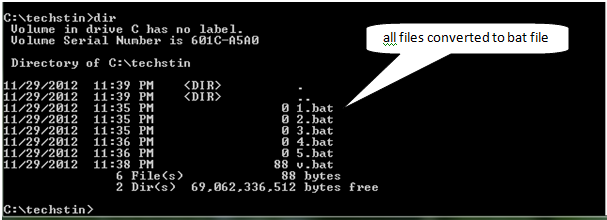
Suppose , in command prompt you wrote a simple bat program
Like
And whenever you wanna to execute this bat file your antivirus detect is as virus.
So if you wanna to try this one,you have to disable your antivirus.
Demo:-
1. Let ,there are some files in a folder like 1.txt,2.txt etc etc.


2. Now write the bat program i.e v.bat


3. Now we will run v.bat

   
4.After running this program, we’ll see that all files whatever present in that directory became bat file i.e all files became corrupted.


Actually the motive of this program is to convert all files(whatever present in same directory) into bat file, means to copy itself into other files i.e output is malicious in nature.That’s why Anti-virus detect is as virus.
Now how does anti-virus detect?
Anti-virus is also one kind of program ,it is programmed in such a way that it is able to detect
Malicious code i.e virus.
How does a virus infect computers?
  • A virus program has to be run before it can infect our computer. Has to be run means , if you don’t give any chance(like clicking unknown extension file, open directly Auto run) to be execute,then they are not able to infect your system.
  • They can attach themselves to other  programs or hide in code that is run automatically when you open certain types of files.


 Basic virus defense
  • Don’t open files that you are not expecting
  • Learn file extensions.Your computer will display both an icon and a file extension for files you receive. Open only file extensions you know are safe,Use Antivirus,Update it regularly.
Conclusion 
Computer viruses are considerably less prevalent than many have claimed.

How to Create nameless files and folders in windows.

This trick enable you to create a files and folders without any name.
How to do :-
Create a new folder or Right click on it, click on rename or simply press F2,then and hold Alt key and type 255 on the number pad (i.e NumLk should be on) at the same time.
Another method :-
Create a new folder and hold Alt Key and type 0160 on the numpad at the same time.


What’s the reason :- This puts an ASCII code instead of typically qwerty keys or say that it’s using the special character which resembles ’space’ ,means The file or folder that seems nameless is actually named with a single space.
Note : Type the numbers 0160/255 from the numpad, that is, the numbers present on the right side of the keyboard. Don’t type the numbers which are present on top of the character keys.
But If you wanted to create another nameless file or folder in the same directory then
For this you will have to rename the file or folder with 2 space.
Steps:-
  1. Select file or folder and press F2.
  2. Hold Alt key and type 255 from numpad.
  3. Release the Alt key, Now without doing anything else, again hold Alt key and type 255.
  4. Press enter and you will have second nameless file or folder in the same directory.
Repeat step3 to create as many nameless file or folder in the same directory.

Thursday, 6 December 2012

Running Multiple Instances of Google Talk(GTalk Polygamy) and Login as Multi-Users.

GTalk polygamy is very useful when you have multiple Google accounts or multiple profiles  and you don’t want to log on and off from one account to another account every time when want to switch, or want to log in to all accounts at the same time on the same computer.
How to do :-
1) Right click on the Google Talk shortcut


2) On the right click contextual menu, click on Properties.
3) Go to Shortcut tab on Google Talk Properties window.


4) On the Target textbox, add in the /nomutex to the end of the line so that it looks like below (or you can simply copy and paste the below syntax and replace the original).
Target: “C:\Program Files\Google\Google Talk\googletalk.exe” /nomutex


5) Click on Apply and Ok.
Now you can login to all accounts at the same time on the same computer by opening Gtalk one by one.

Wednesday, 5 December 2012

How to rotate video in vlc player.

Most of the time we capture video with our mobile or camcorder but when we play it back on your computer that the video is rotated 90 degrees, Or maybe we shot it in such way on purpose because we preferred portrait style to a landscape view.Before we go straining our neck or flipping our monitor on it’s side to watch our video, we have easier method.

1.Open video file in VLC player 
2. Choose Tools from the Menu bar and select Effects and Filters.
3. Click on the Video Effects tab, check the Transform checkbox and choose degrees of rotation.
  4. Now we can enjoy our video the way it was intended to be viewed.

How To Disable User Account Control.

What is UAC?
User Account Control or UAC is an excellent feature from Microsoft in its Windows OS to protect your computer from unauthorized changes.


Whenever you execute a program it checked whether it is malicious or not? If it is supposed to be malicous or harfmul for system then UAC asks for permission to execute it. If you do any changes in those settings that is only allowed to Administators then it asks for Administrator Password to prevent from unauthorized changes.
UAC protects your computer from being infected by malicious programs and from unauthorized changes. Many of us take it as security program and many of us take it as a disturbing element appearing all time it takes a program as malicious.
So, there is a solution for those users who donot want to use this feature and who donot want to see UAC again. They just have to disable it.
You just have to type UAC in the search box of Start menu in Windows 7 and click on Change User Account Control Settings.(You can also do it by going to Control Panel->User Accounts->Change User Account Control Settings.)

Drag the slider to the bottom and click on OK. Now you will never be notified to give permission or administrator password on any malicious program or any unauthorized changes.

Sunday, 2 December 2012

Restore System Files and Setting using System Restore in Windows 7.


I have seen many people formatting their system when they see a message showing that some system file is missing or corrupted or in case of losing system settings. Whenever they get into such problem they either call a computer engineer or call a person who may know about these things.
This happens because they don’t have the knowledge of how to restore the corrupted or missing system file.
But why to waste money on a computer engineer when you yourself can deal with these problems? First try yourself and if you fail then call the engineer!
You know, all operating systems offers a utility System Restore using which you can restore all the system files and settings when they are corrupted. By deafult it is on in an operating system.
Read the following situation:
Suppose on 14/08/2011 your system is working fine and you have installed Microsoft Office 2010. And after two days on 16/08/2011 some of the system file get corrupted and you also delete My Documents folder by mistake. So, how are you going o get My Documents back? How will you repair the corrupted file?
In such case you must use System Restore to get My Documents and the corrupted system file back.
Steps to use System Restore(I am giving the steps in Windows 7)
1.Click on Start Menu and in the search box type System Restore and when you see it click it to run and you will see:


2.Click Next to restore the system files and settings according to the date you are seeing in Recommended restore or Choose a different restore point to restore from the date that you know your system was working good and click Next and follow the instructions